Laptops, thanks to their mobility, have an advantage over personal computers, especially when it comes to portability. This allows a player, whether going on vacation, a business trip, or somewhere else, to have the opportunity to play their favorite games.
However, the gaming world is developing rapidly, so laptops that are already a few years old may no longer be relevant for modern games. Because of this, some gamers see an advantage in PCs, which are easy to upgrade since you can replace any component, whereas laptops have certain limitations. But this does not mean that after a few years of use your laptop should be thrown away. We have prepared a small guide to help you understand how to upgrade gaming laptop and keep it in good working condition.
Checking the Technical Condition
You should not rush into upgrading your laptop right away. First, assess the condition of your device and decide what exactly you want to improve in it.
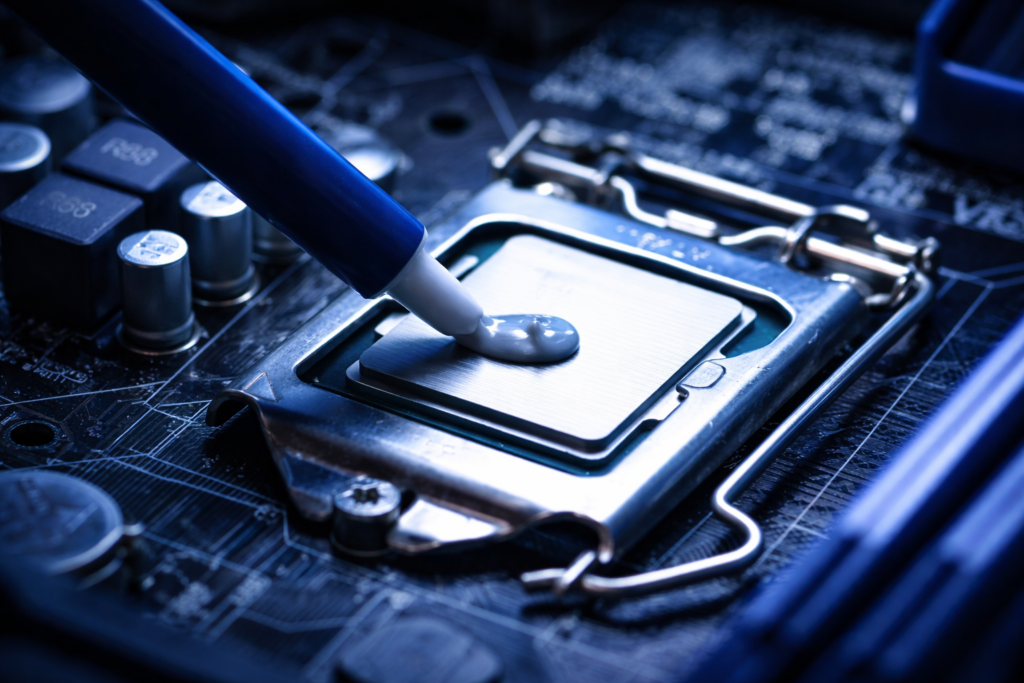
It’s also worth taking your laptop in for cleaning and thermal paste replacement. Gaming laptop maintenance will help improve airflow inside the device and prevent severe overheating, which will extend its lifespan.
Check the System Condition
First, you should check how well your operating system is optimized. Make sure you have the latest drivers installed. If you are unsure, you can use a program like Driver Easy, which will show you which drivers need to be updated.
This step often helps significantly improve the laptop’s gaming performance, especially considering the fact that graphics card developers with each update try to adapt hardware to meet the requirements of modern games.
Improve gaming laptop performance also depends on the number of programs installed on it. For efficient device operation, get rid of all unnecessary programs on your laptop. Also, open the “Task Manager,” where you can disable the autorun of programs you don’t need and stop processes that are simply running in the background but are not being used.
Gaming laptop optimization and cleaning the device of temporary files will help free up resources for efficient operation.
Monitor Your Laptop’s Operating Temperature
We’ve already mentioned that it’s important to prevent your laptop from overheating, as this affects its lifespan. So, what are the solutions for cooling a laptop? First of all, you need to clean it from dust, replace the thermal paste and thermal pads. Such maintenance should be done 1–2 times a year.
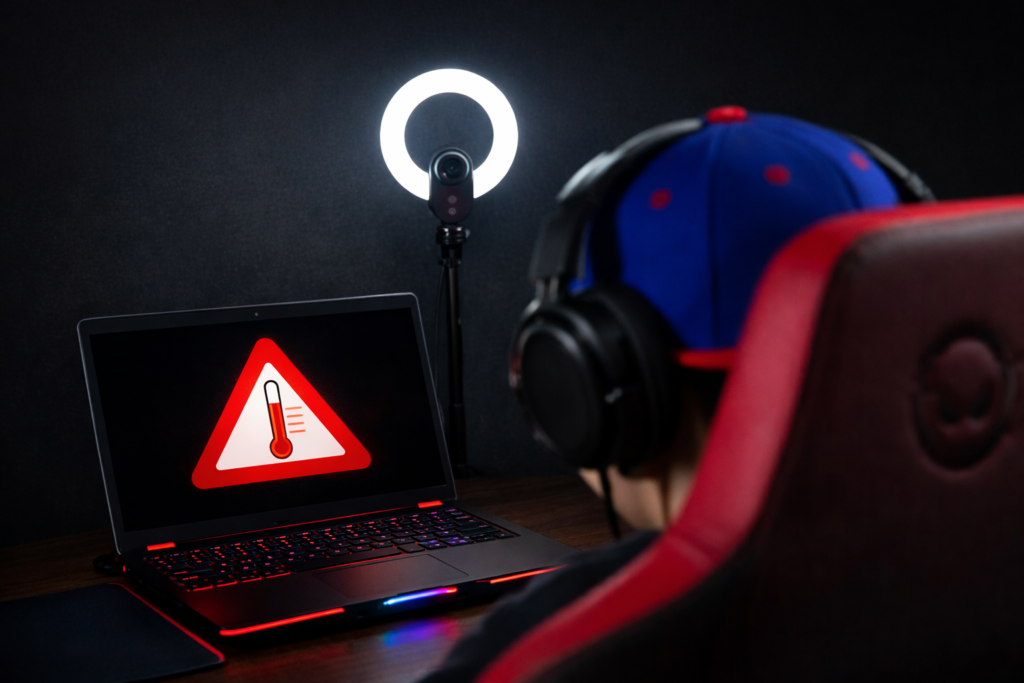
You should also avoid blocking the vents through which air enters and exits the laptop’s case. Since these vents are often located at the bottom, it’s a good idea to use a stand to ensure proper airflow. In various stores, you can find stands with fans that, according to manufacturers, cool the laptop. However, the effectiveness of such devices is barely noticeable, if it exists at all, so we do not recommend spending money on them—they will just take up space on your desk.
Therefore, the best options are regular cleaning of the laptop from dust and disabling unnecessary processes when working with programs and games that require a large amount of system resources.
Focus on Performance
On a gaming laptop, you should avoid using power-saving mode and enable high-performance mode. You can do this by opening the settings, then going to the “System” section and selecting “Power”, where you can activate the mode you need. This will allow you to shift the system’s priority from battery life to higher performance.
Upgrading Important Laptop Components
Performing a complete laptop hardware upgrades is a much more complicated process compared to a PC. Most components are soldered to the motherboard, but you can add more RAM, replace the hard drive, and take a few additional steps to improve the device’s performance.
However, upgrade laptop for gaming should only begin after assessing the technical condition of the device. You need to make sure that its poor performance is not caused by a poorly configured operating system or outdated drivers.
If you are confident that replacement or upgrading of components is necessary, then you should move on to researching what exactly can be replaced. You need to find out which component manufacturers and specific models are compatible with your laptop. This will help you avoid spending money on parts that will not fit.
Gaming laptop RAM upgrade
First of all, you should pay attention to the amount of RAM you have. Upgrading the RAM in a gaming laptop is one of the relatively budget-friendly improvement options that does not require serious technical work.
For modern games, the optimal amount of RAM is 16 GB, so if you have 8 GB or less, we recommend starting with replacing or adding another RAM stick if there is an available slot.
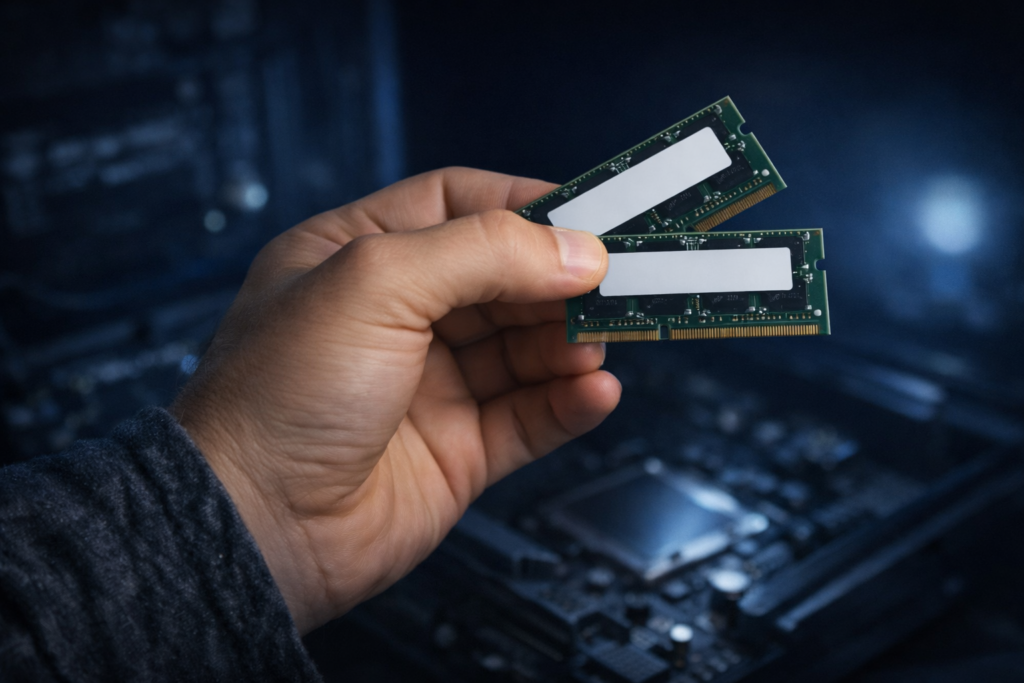
RAM upgrade benefits:
👉 Improved system speed.
👉 Better performance when working with large files and in games.
👉 Increased multitasking capability of the laptop.
This will make your laptop last longer, since RAM is an essential element for the efficient operation of the OS, various programs, and games.
SSD vs HDD for Gaming
For beginners in computer components, the question often arises: what is the difference between an SSD and an HDD for gaming? Let’s briefly break it down.
An HDD is a more budget-friendly option, but it lags behind in terms of performance. An SSD costs more, but when using it, the system works about twice as fast, and the same applies to game loading times. That’s why for quality gaming, an SSD is now a necessity, while an HDD can be used as an additional drive for storing various files.
If your laptop uses an HDD, it’s better to replace it. If that’s not technically possible, consider adding an SSD in an additional slot, which is often provided in laptops.
To sum up, we can say that a gaming laptop SSD upgrade will improve the performance of the device, games and the system itself will start to load and run much faster. It’s no coincidence that in recent times, recommended system requirements for games often include the presence of an SSD.
External Graphics Card for a Laptop
Of course, the main problem with gaming laptops is the graphics card, since replacing it is complicated and, in some cases, completely impossible. That’s where an external GPU for laptop (eGPU) comes in a full-sized for PC graphics card that connects via Thunderbolt or USB-C.
An external graphics processor for a laptop consists of a PC graphics card and an eGPU enclosure with a PCIe slot and a power supply. By using an eGPU, you can significantly improve the graphical performance of your laptop.
However, this technical solution has certain drawbacks. For example, the eGPU enclosure requires additional space, which reduces mobility. Compatibility is also an issue, as not all laptops can support an external graphics processor or take full advantage of the GPU’s power.
Now let’s look at the steps for setting up an external GPU setup:
- Check whether your laptop is compatible with an eGPU. To do this, visit the manufacturer’s website and look for information there. Also, make sure you have the option to connect via Thunderbolt or USB-C. Don’t forget to update your drivers and BIOS to the latest version.
- Next, choose an enclosure and a graphics card that will suit your device. Then install the graphics card into the PCIe slot inside the enclosure and connect the power supply.
- Connect the enclosure to the laptop using a Thunderbolt or USB-C cable. You can also use an external monitor, which may improve FPS in games by about 5–10%.
- After connecting, install the drivers, which can be found on the graphics card manufacturer’s website. Then make sure the eGPU appears in Device Manager.
Once the system detects the eGPU, go to Windows settings: Settings → System → Display → Graphics, where you should set the external graphics card to be used for high-performance processes. You can also specify the eGPU as the primary graphics processor for games through NVIDIA Control Panel or AMD Radeon Software.
Conclusion
In conclusion, upgrading a gaming laptop is a good option for those who want to play modern games but do not have the opportunity to buy a new device. By adding more RAM, installing an SSD, and optimizing the system, you can already have a laptop that runs quite fast and is suitable for most modern games. Of course, with an eGPU, you can further enhance the graphical performance of your device.
Top Gaming Laptop Performance Tips:
- Monitor the technical condition of the device.
- Regularly clean the laptop from dust and replace the thermal paste. Make sure the device does not overheat.
- Disable unnecessary background programs and delete temporary files.
- Check whether your drivers are up to date.
- Prioritize laptop performance over power saving.
- Increasing RAM and installing an SSD will make your device more productive.
We hope this article will help you update your gaming laptop and make it more efficient, so you can enjoy new games.